Gemini CLI in the agent panel
Your Google sign-in drives termide's agent through Gemini CLI, with termide's permission cards, reviewer and editor around it
Gemini CLI runs on your Google account or a Gemini API key. You could run gemini in one of termide’s terminal panels, but it would live beside termide rather than inside it: its edits land on disk behind the back of the open editor, its approvals are its own, and its sessions are not termide’s.
termide’s agent panel can run on Gemini CLI instead. The model, the quota and Gemini CLI’s own way of working stay Google’s; the permission cards, the session list and the editor that follows every edit are termide’s. This guide sets that up and shows what changes compared with Gemini CLI in a terminal.
What you need
- Node.js, with
npxonPATH. Gemini CLI speaks the Agent Client Protocol itself, with no adapter: termide runs the latest@google/gemini-clirelease with--acpthroughnpx. The copy in npm’s cache starts without asking the registry; termide looks for a newer release once per run in the background, and a new one starts from the next panel on. - Gemini CLI signed in. termide does not run a sign-in itself. If you use Gemini CLI already, you are set; otherwise start it once on its own,
npx @google/gemini-cli, and choose how it signs in: with your Google account, a Gemini API key (GEMINI_API_KEY) or Vertex AI.
Add the connection
Open the settings with Alt+P and go to AI. Connections comes first. Pick + Add connection, and on the new connection’s page set Provider to Gemini CLI. The page sheds the fields Gemini CLI does not need — base URL, API key, the fallback context window — and the connection is named gemini-cli until you name it.
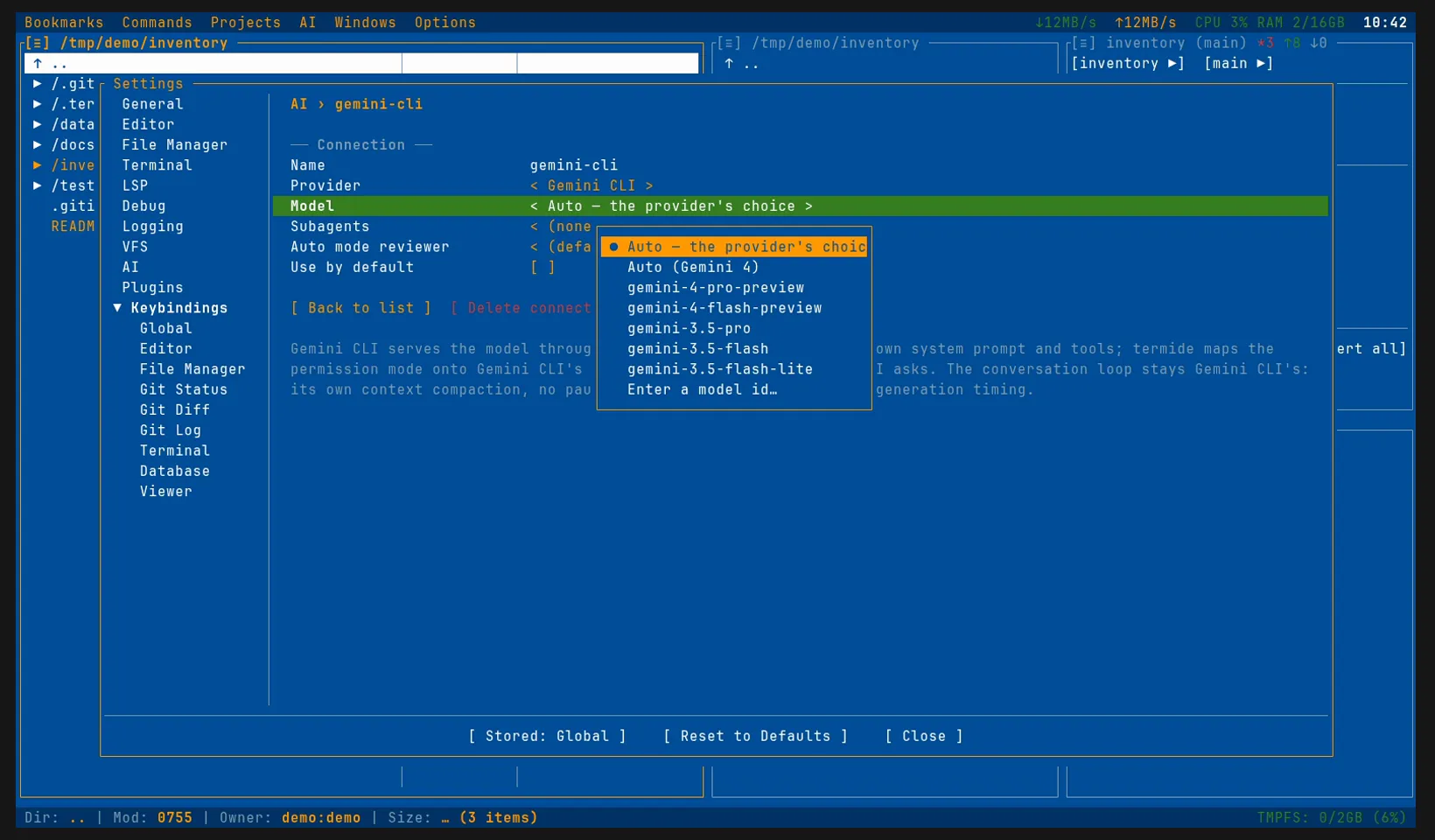
The rest of the page:
- Model: termide starts Gemini CLI for a moment and lists the models it offers; a spinner turns in the field meanwhile. Gemini’s own Auto picks a model per request; Auto — the provider’s choice leaves the pick to Gemini CLI’s settings. The model you choose is only the one pre-selected: in the panel you can switch at any time.
- Use by default: tick it, and new agent panels start on Gemini CLI.
There is no Context window limit here: Gemini CLI has no setting for it, and compresses its conversation on its own terms.
The same in config.toml:
[ai]
connection = "gemini"        # the connection new sessions start on

[ai.connections.gemini]
provider = "gemini_cli"      # nothing else is required
# model = ""                 # empty: Gemini CLI's own default
The first request
Open the agent panel with Alt+A. The banner shows the connection and the model; the Model chip in the status bar spins while Gemini CLI starts in the background, and a request sent meanwhile waits for it. Then the panel works as with any other connection: answers, thoughts and Gemini’s steps appear as blocks — a read, an edit with its file, a command with its command line — an editor that has the file open follows each edit, and the run clock ticks until Gemini CLI is done.
The Model chip lists and switches Gemini CLI’s models at any time, during a run too. Gemini CLI’s own / commands join the panel’s / list and go to it as typed. A message typed while it works waits in the state strip and goes as the next request: Gemini CLI takes no message in the middle of a turn.
Gemini’s tools, termide’s decisions
Like Codex, Gemini CLI keeps its own system prompt and its own tools: it reads, edits and runs commands as it does in a terminal, and its own configuration — ~/.gemini/settings.json, its MCP servers and extensions, its GEMINI.md context files — still applies. What termide adds:
- The permission mode. termide sets Gemini CLI’s approval mode to match the panel’s, and decides what Gemini asks for approval.
- termide’s MCP servers. Their tools are served to Gemini CLI beside its own and checked as Gemini’s own calls are. Gemini CLI reads the list once, when its session starts, so a server that connects later reaches it in the next session.
- The tools Gemini CLI has no counterpart of:
recallto search earlier sessions and git history,skillwith your skills listed in its description,questionandsuggest_command.
Gemini CLI reads GEMINI.md, not AGENTS.md. If your project keeps its instructions in AGENTS.md, as termide’s other connections expect, tell Gemini CLI to read it too, in ~/.gemini/settings.json:
{ "context": { "fileName": ["AGENTS.md", "GEMINI.md"] } }The conversation loop stays Gemini CLI’s: it compresses its context itself, and a run cannot pause between steps.
Permissions and auto mode
The Permissions chip (or Shift+Tab) sets the mode, and termide maps it onto Gemini CLI’s approval modes:
| termide | Gemini CLI |
|---|---|
ask, configured, auto |
default: asks before edits and commands |
plan |
plan, when plan mode is on in Gemini’s settings; otherwise default, and termide refuses the edits |
edit |
autoEdit: edits pass, commands ask |
all |
yolo: nothing asks |
Whatever Gemini CLI asks for approval goes through termide’s checks: your rules, the answers you gave in the session, and the mode. Anything they do not settle comes up as a card above the input: allow once, for the session, always in this project or everywhere, deny, deny and tell the agent why, or stop the run.
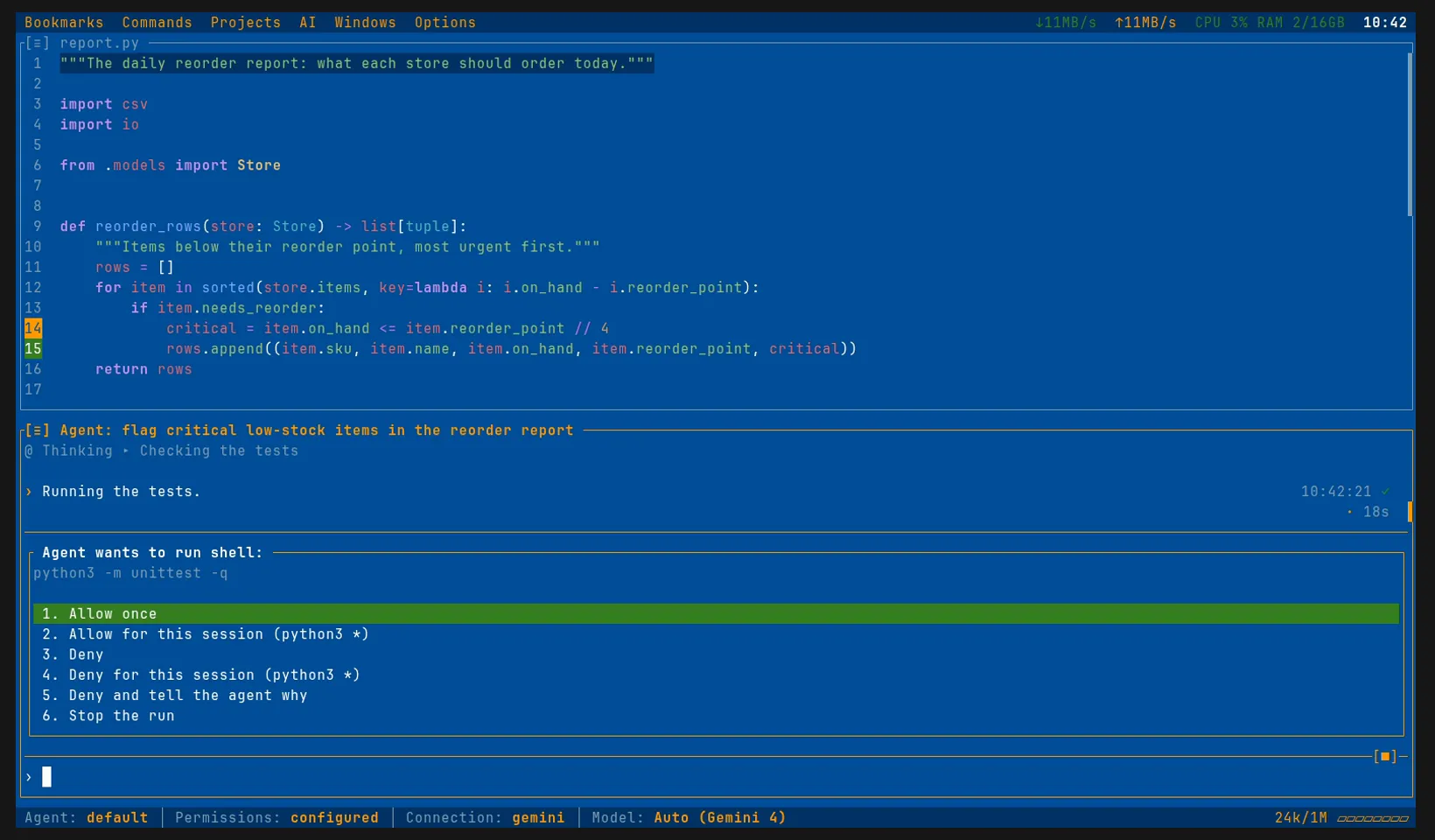
auto is for a run you trust in its direction but do not want to answer card after card. What would put a card up goes to a reviewer, a separate model call that decides whether the step serves what you asked for. On a Gemini CLI connection the reviewer runs through your sign-in, on the model the session runs on, with no API key; termide keeps Gemini CLI running and asks each review in a short session of its own, without tools and without the agent’s conversation, so the agent never judges itself. Gemini CLI keeps its own system prompt there too, so a review is slower than on a model connection, and it counts against your quota. A small model is the usual choice; name it in Auto mode reviewer on the connection’s page or in [ai.auto_reviewer]:
[ai.auto_reviewer]
connection = "gemini"   # empty: the session's own
model = "flash-lite"    # a model of it, by id, name or a part of either
When the quota runs out
Gemini CLI retries a quota error on its own first. Once it gives up, its ACP mode reports only “Rate limit exceeded. Try again later.” — without the reset time the API stated — so the card cannot count down to it:
- Try again now,
- Keep trying until it goes through, waiting longer between attempts,
- Stop (Esc).
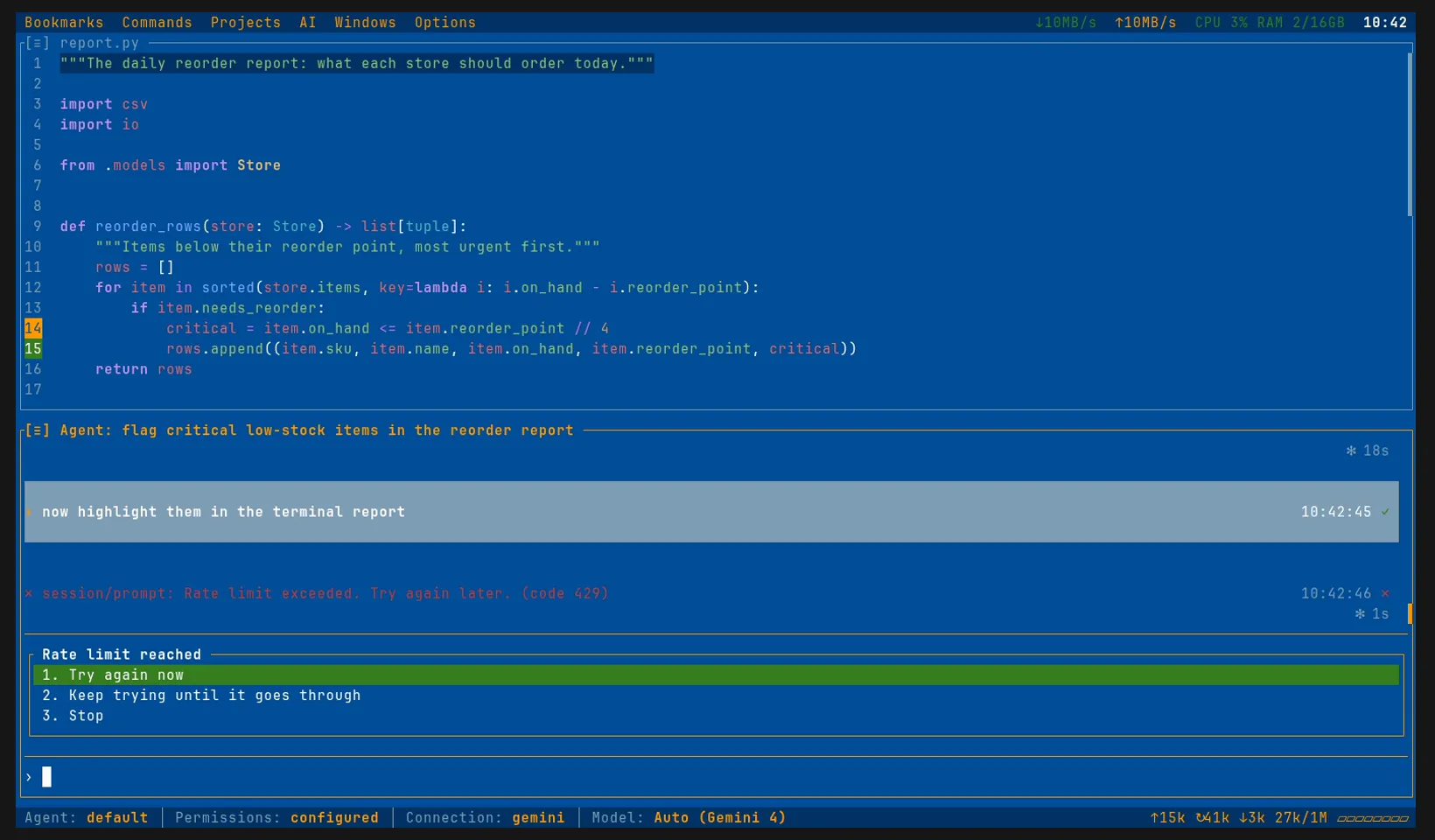
For an unattended /goal or /loop, set On a limit or outage (on_limit under [ai]) to wait, and the run keeps trying by itself; ask_else_wait shows the card and keeps trying if nobody answers. Closing termide meanwhile loses nothing: the reopened session brings the card back.
If you do not want to wait, keep a second connection. The status bar’s Connection chip stays clickable while the card is up: move the session to it, then answer Try again now. The conversation carries over, so the other model picks it up where Gemini stopped. The Gemini API itself is one such connection, billed to a key:
[ai.connections.gemini]
provider = "gemini_cli"

[ai.connections.gemini-api]
provider = "openai_compatible"
base_url = "https://generativelanguage.googleapis.com/v1beta/openai"
model = "gemini-3.5-flash"
api_key_env = "GEMINI_API_KEY"
Delegated tasks
Gemini CLI runs no termide delegates: it has its own way of splitting work, and the Subagents field on its page reads (none). A delegate cannot run on Gemini CLI either; for that, a session needs a model connection or Claude Code.
Sessions and spending
The session log records Gemini CLI’s own session, so a reopened panel continues it, with the whole conversation known to Gemini. A session that moved to Gemini CLI from another connection starts with a record of the conversation so far. Gemini CLI does not fork a session, so /goal’s judge and /handoff’s brief go to it as a turn that the panel and its log leave out, though Gemini’s own session keeps it.
Session info (F3 or /usage) breaks the tokens down by who spent them — the conversation, the auto reviewer and the rest — and by model. Gemini counts its thoughts apart, so the Reasoning line shows how much of the output went to thinking.
Good to know
- No sandbox from termide. termide’s permissions are a control, not isolation: what you allow runs with your rights, as far as Gemini CLI’s own sandbox, when you turn it on, lets it.
- Claude Code and Codex connect the same way:
provider = "claude_code"or"codex". Claude Code in the agent panel and Codex in the agent panel go through them. - Any OpenAI- or Anthropic-compatible API can be the second connection to move a session to when the limit runs out: a hosted one such as OpenAI, OpenRouter or Anthropic, or a server of your own, with termide’s own agent. llama.cpp and omlx are two examples of the latter.
- The details are in the agent guide.