Perforce in termide
Check out, diff and submit without leaving the editor, and see what you changed the way git users do
Your team keeps its code in Perforce. Every file in the workspace is read-only until you check it out with p4 edit, and the editors that know only git leave you guessing: is this file the latest revision, has a colleague locked it, what have I changed so far? You end up with a terminal open beside the editor, typing p4 commands by hand.
termide comes with a Perforce plugin built in. It shows each file’s state in the status bar, checks files out on a key, marks the lines you changed against the depot, colours your opened files in the file manager and gives you a panel to look over and submit your changes. There is nothing to download: all it needs is the p4 command-line client, which you already have if you work with Perforce.
Turn it on
The plugin is off until you turn it on, so it stays out of the way for everyone who has never heard of Perforce. Open the settings with Alt+P, go to the Plugins tab, select perforce and press Enter until it says on everywhere. Or put the same thing in your global config.toml by hand:
[plugins.perforce]
mode = "on"
If you also have projects in git and want the plugin only in your Perforce workspaces, choose only where a project turns it on, which is mode = "opt-in" in the file:
[plugins.perforce]
mode = "opt-in"
and switch it on in the workspace’s own .termide/config.toml:
[plugins.perforce]
enabled = true
The plugin finds the server, the user and the workspace the same way p4 does in a shell: from P4PORT, P4USER and P4CLIENT, or from the P4CONFIG file in the workspace. If p4 info works in a terminal in that folder, the plugin works too.
See where each file stands
Open the workspace in termide and open a file. The file manager shows the files you have opened in Perforce in colour, the folders that contain them included, and the right side of the status bar tells you about the file in the editor:
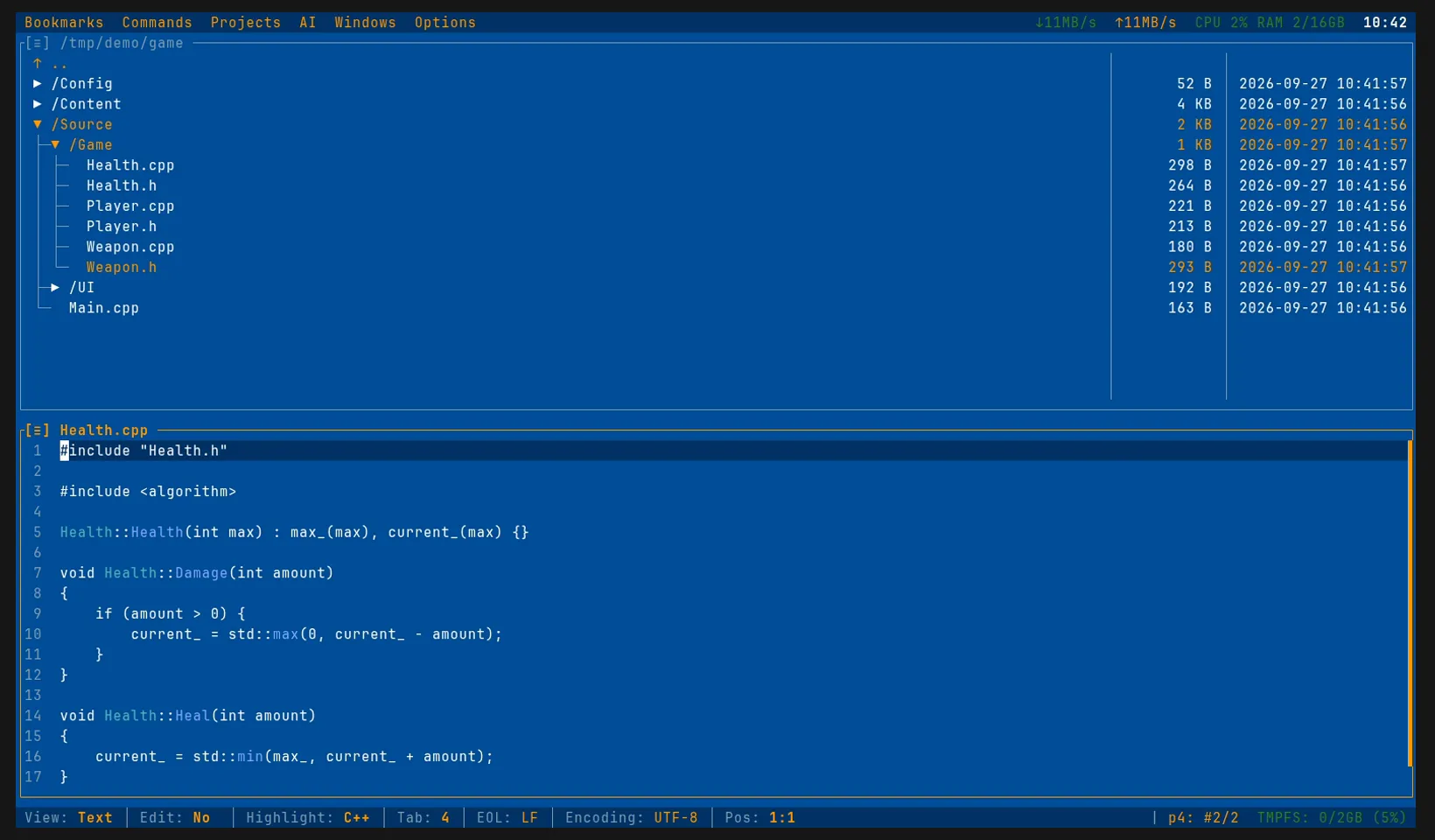
Weapon.h is opened for edit and shows in colour. Health.cpp is not, so the editor shows Edit: No, and the status bar says the workspace has revision 2 of 2.What the status bar can say:
p4: #2/2: you have the latest revision, and the file is not opened;p4: #3/5 (out of date): you have revision 3, the depot has 5, so it is time to sync;p4: edit #5/5 · change 1234: you have it opened for edit, in changelist 1234;p4: #5/5 · also opened by alex@alex-ws, orlocked by alex@alex-ws: someone else holds the file;p4: not in depot: a new file that nobody has added yet.
Check out a file and edit it
The editor knows the file is read-only and will not let you type into it. Turn editing on the way you would for any file, with Ctrl+E or a click on Edit: No in the status bar, and the plugin runs p4 edit instead of just letting you type into a file you could not save: the editor becomes editable right where it is, the status bar shows edit, and the file takes its colour in the file manager. Now start typing: the lines you add or change are marked in the gutter beside the line numbers, compared with the revision you checked out, just as termide marks changes against the last commit in git.
Done with the file, or changed your mind? Press Ctrl+E again to stop editing. The plugin asks what to do with the file, and its choices depend on whether your changes are saved.
With unsaved changes:
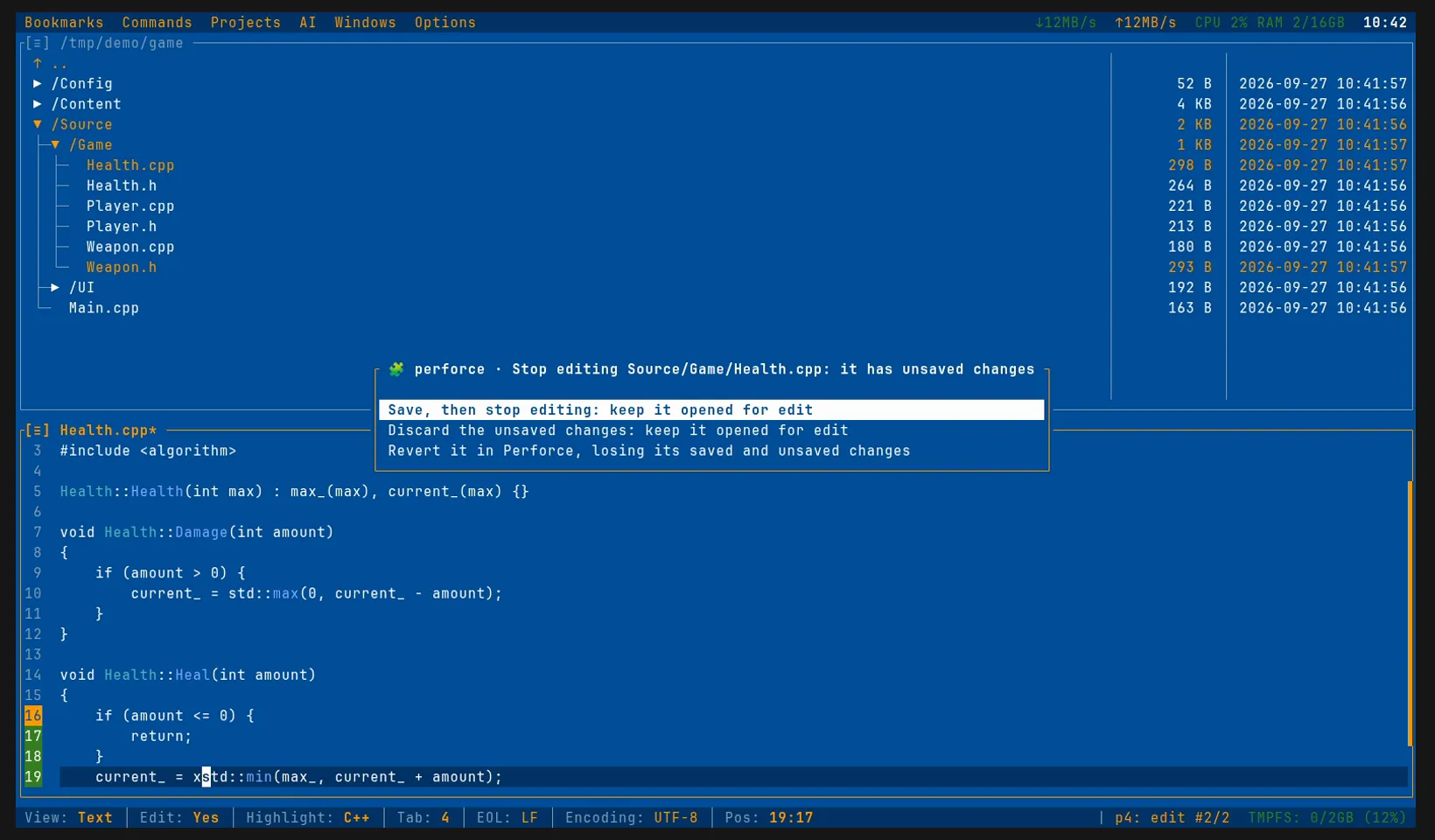
- Save, then stop editing — the first choice, where Enter lands: the file is saved as Ctrl+S would, the editor goes back to viewing, and the file stays checked out for you to submit later.
- Discard the unsaved changes — the unsaved changes are dropped, the editor shows the file as it is on disk, and it stays checked out.
- Revert it in Perforce — runs
p4 revert: both your saved and unsaved changes are gone, the file returns to the depot’s revision and turns read-only again. - Esc — nothing happens, and you keep editing.
With everything saved there is nothing to save, and two choices remain:
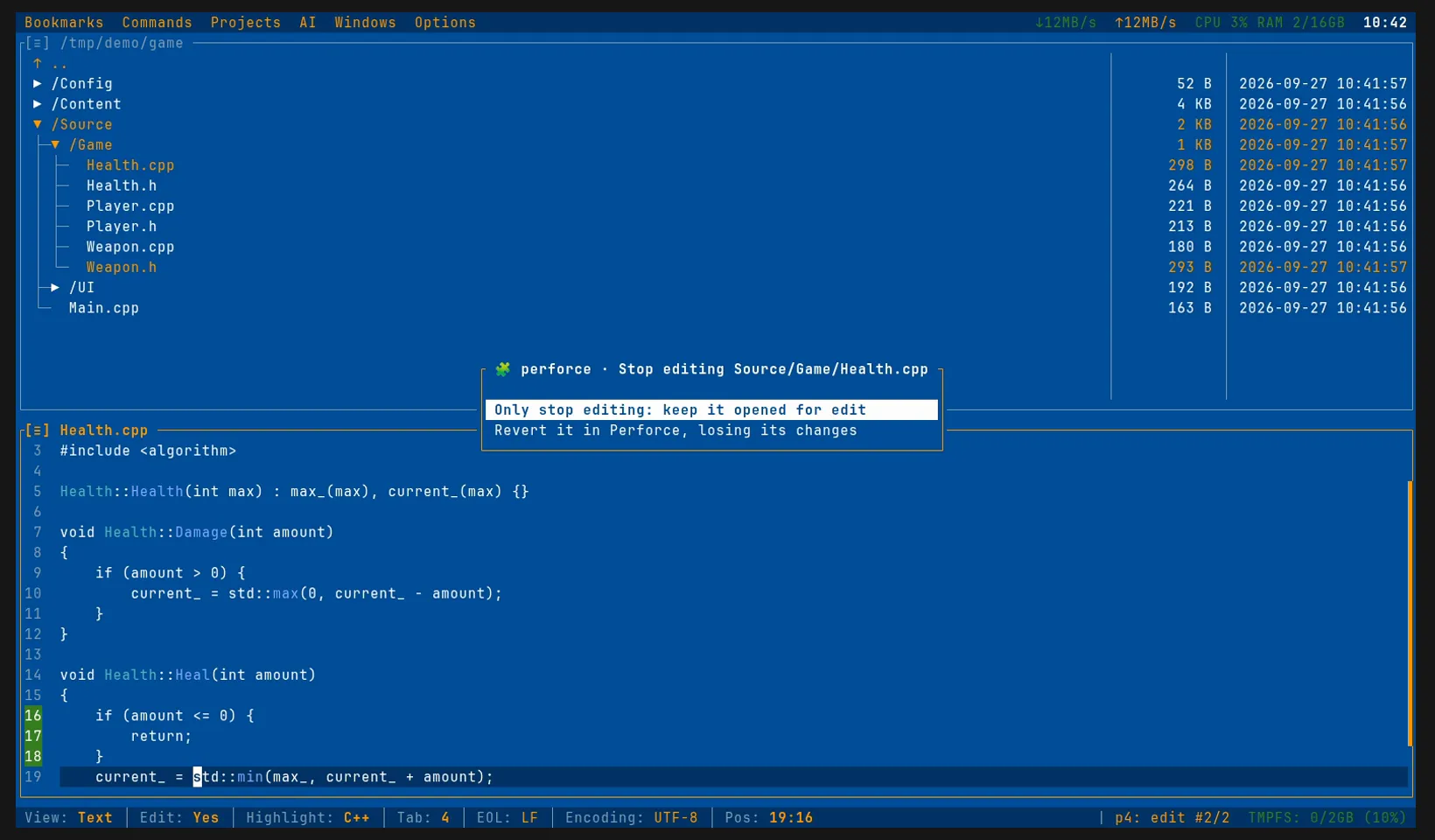
- Only stop editing — the editor goes back to viewing, and the file stays checked out.
- Revert it in Perforce — runs
p4 revert, as above. - Esc — you keep editing.
A new file the depot does not have yet is writable, so there is nothing to turn on: open it for add from the palette, with perforce: Open the file for edit or add.
When a colleague has the file
Perforce lets several people edit one file, but you want to know before you start. The status bar already tells you when you open the file, and Ctrl+E asks before it checks the file out:
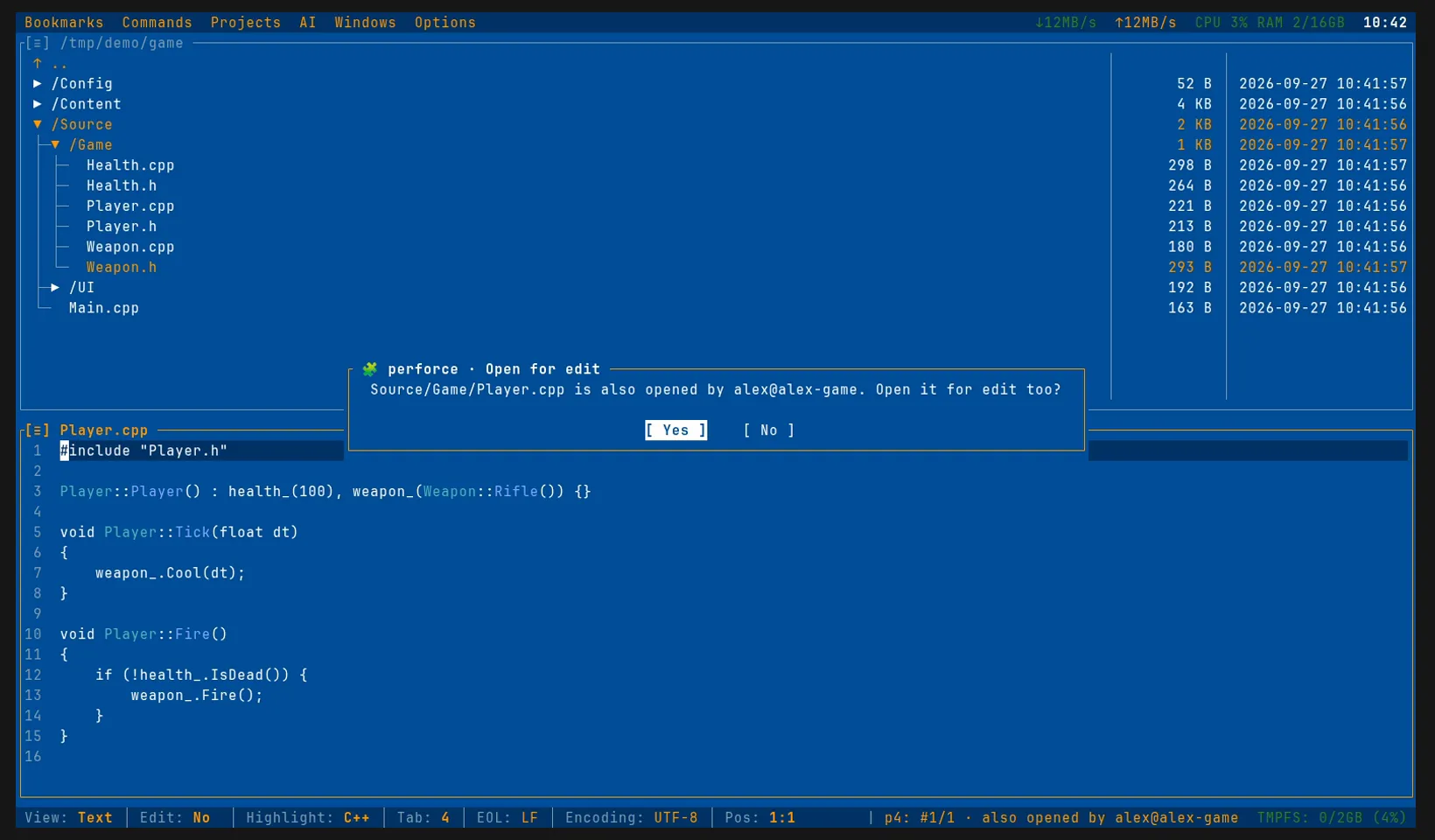
A file someone has locked is not checked out at all: the plugin says who holds the lock and leaves the file as it is.
Review and submit
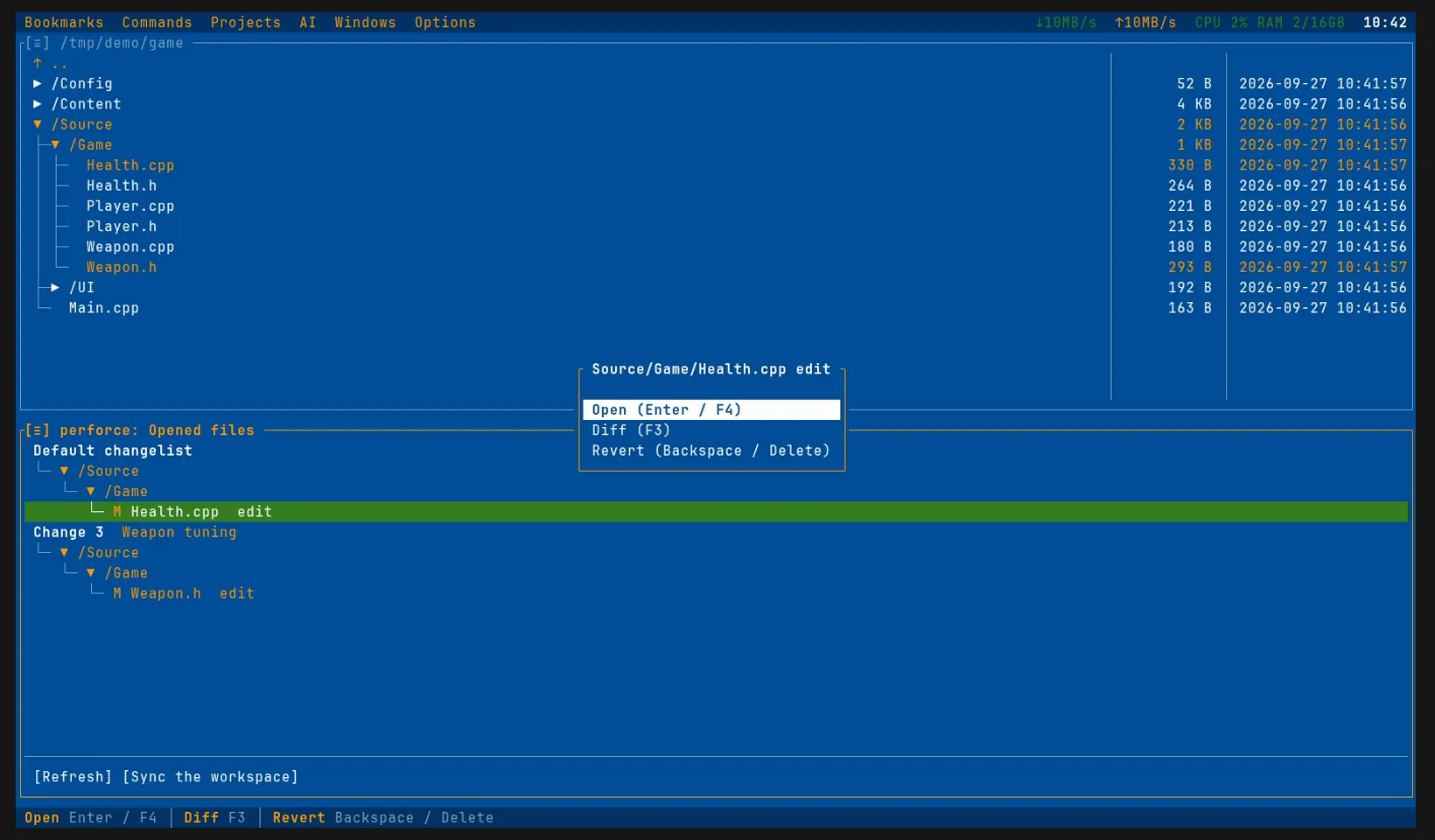
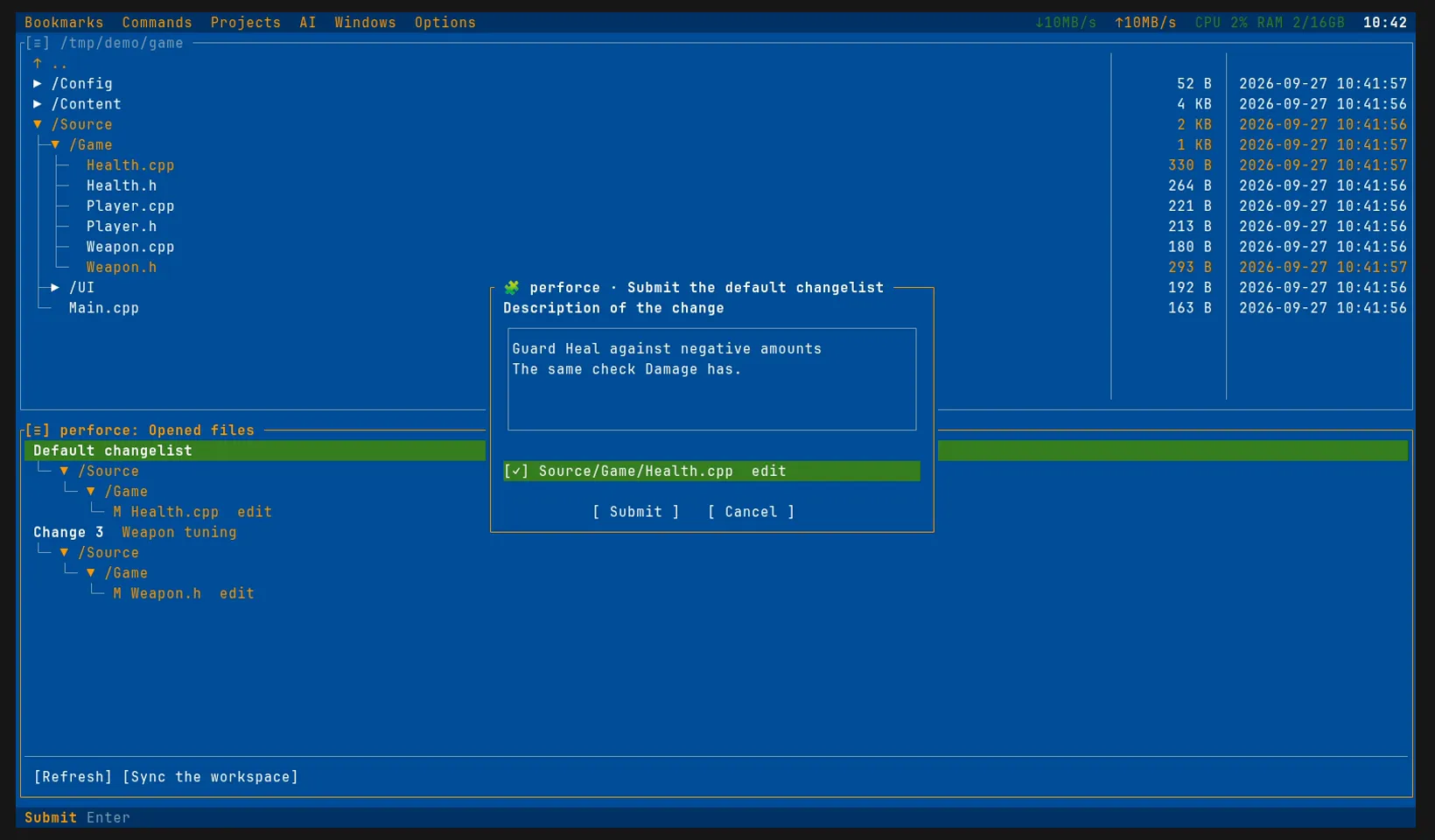
When the work is done, press Alt+G for the Opened files panel: in a project outside git, the key of git’s status panel opens Perforce’s. It lists everything you have opened in this workspace, grouped by changelist and laid out in a tree of folders, each file coloured as the file manager colours it and followed by its action. It works as git’s status panel does, with the same keys: move with the arrows, Enter or F4 opens the file in the editor, F3 shows what changed, and Backspace reverts it; ← and → fold and unfold a folder. On a changelist’s heading, Enter submits it: a numbered changelist goes with its own description, and the default one opens a dialog, shown below. The status bar shows what the selected line offers, as buttons to click, and Space or a right click lists it:
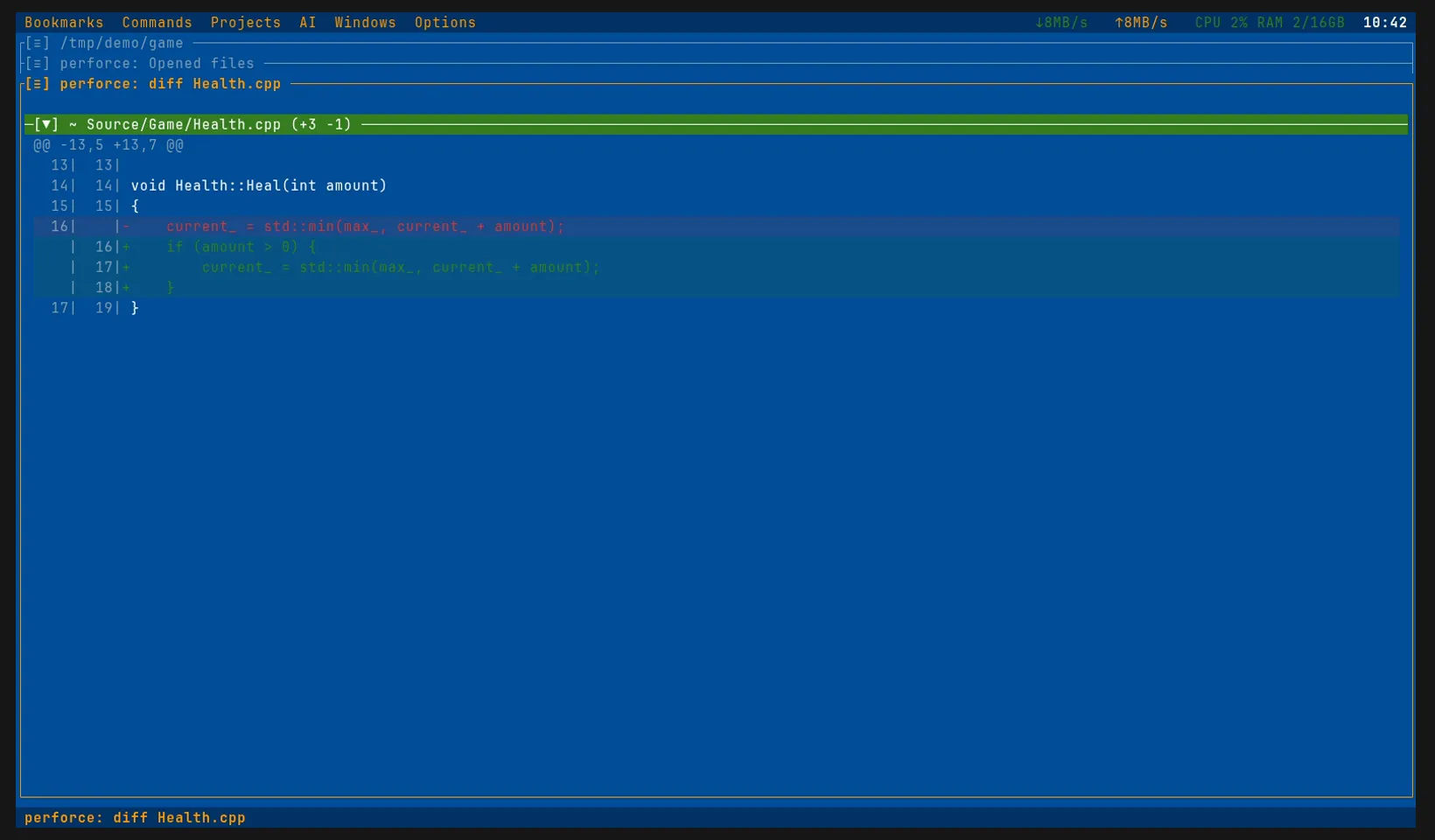
The diff opens in the panel git’s diffs open in, with the same colours, line numbers and folding. For the file in the editor, perforce: Show the file’s changes in the command palette opens it without the detour:
Submitting the default changelist asks for a description, of as many lines as you like, and which of its files to send, all of them ticked to start with. Tab moves from the description to the files and on to the buttons, Space unticks a file you want to keep back, and Enter on the list submits. The files you leave unticked stay in the default changelist; the plugin moves the rest to a numbered changelist of their own and submits that:
After a submit, the panel shows what remains opened, and the submitted files lose their colour in the file manager.
To get your colleagues’ changes, press [Sync the workspace] at the bottom of the panel (Tab gets you there from the keyboard) or use perforce: Sync the workspace in the command palette (Ctrl+P). It runs p4 sync in a terminal panel, so you can watch the files arrive and answer p4 if it asks you something.
All the keys
| Key | What it does |
|---|---|
| Ctrl+E | In a read-only file, opens it for edit. Asks first when someone else has it open, and refuses when it is locked. In a file you have opened, turns editing off: with unsaved changes it offers to save them, discard them or revert the file; with everything saved, to only stop editing or revert. |
| Alt+G | Opens the Opened files panel in a project outside git; in a git repository, git’s status as ever. |
| Enter | In the Opened files panel: opens the file, or submits the changelist on its heading. |
| F3 / F4 | In the panel: shows the file’s diff / opens it in the editor. |
| Backspace | In the panel: reverts the file, asking first. |
| Space | In the panel: lists what can be done with the line. |
| Ctrl+R | In the panel: refreshes it. |
| ← / → | In the panel: folds / unfolds a folder. |
| Tab | In the panel: goes to the buttons under the list and back. |
Every command is also in the command palette (Ctrl+P): type perforce.
The coding agent knows Perforce too
The plugin gives termide’s coding agent three tools. opened lists the opened files and diff shows a file’s changes. Both only read, so the agent uses them freely. edit checks files out or adds new ones, so the agent asks you before it runs it. Without these tools, an agent asked to fix a bug in a Perforce workspace runs into read-only files and has to guess why.
Good to know
- When your login expires, the plugin offers to run
p4 loginin a terminal panel; once you have logged in there, the next command just works. - Git comes first. If a folder is both a git repository and a Perforce workspace, the file manager and the gutter show what git says, and Perforce fills in only where git has nothing to say.
- It runs on its own. The plugin is a separate process that termide starts only in projects where it is on. It asks the server about the file you open and about your opened files, and leaves the rest of the depot alone.
If something in your Perforce day is still missing in termide, tell us in the discussion. The settings are described in the plugin guide.